3 Airbnb Automated Messages Hosts Need to Prevent Blank Shortcodes
Set up reliable Airbnb automated messages: step by step setup, copy ready templates, shortcode checks, editing tips, and a scaling path for multi unit hosts.
3 Airbnb Automated Messages Hosts Need to Prevent Blank Shortcodes
Airbnb automated messages, officially called scheduled quick replies, are pre-written templates the platform sends automatically when a guest books, checks in, or checks out. Set up correctly, they cut hours of repetitive typing every week and keep your response rate strong without you touching your phone. This guide walks through the exact setup steps, the personalization shortcodes that make each message feel individual, and the guardrails that stop messages from silently failing to send.
TL;DR:
- Automated messages rely on accurate listing fields, so blank or missing information can cause guest-facing placeholders like “unavailable.”
- Last-minute bookings can prevent scheduled messages from sending unless the toggle for short stays and late arrivals is enabled.
- Cross-platform management requires duplicate templates and manual updates, which can lead to inconsistencies without specialized tools like RealtevoOS.
- Testing each shortcode against upcoming reservations ensures messages display correct and complete information before automation is active.
- Starting with core templates for booking, pre-arrival, and check-in provides the highest efficiency gains and minimizes guest confusion.
Table of Contents
- How to Set Up Airbnb Message Automation Step by Step
- Why Do Personalization Shortcodes Sometimes Break?
- Best Scheduled Message Templates for Airbnb Hosts
- How Do You Edit or Skip a Scheduled Message?
- Common Reasons Scheduled Messages Fail to Send
- When Do You Need More Than Native Scheduling?
- What Actually Moves the Needle When You Automate
- RealtevoOS: Your Command Center for Multi-Property Messaging
- Sources
How to Set Up Airbnb Message Automation Step by Step
Every scheduled quick reply lives in one place, and the setup path is nearly identical whether you’re on a laptop or your phone.
On desktop, open Messages, then click Manage quick replies. On the mobile app, tap the same messages icon and look for Quick replies under your host tools menu. From there, Airbnb’s scheduled message system lets you build a template and attach it to a trigger.
- Create a new quick reply or select an existing template.
- Choose which listings the message applies to. You can attach one template to a single unit or your entire portfolio.
- Pick the trigger event. Airbnb supports three: new reservation, check-in, and checkout.
- Set the timing. You can schedule a message up to 14 days before or after the trigger, in configurable offsets.
- Save the template and confirm it shows as active in your quick replies list.
The mobile interface trims some of the preview functionality found on desktop, so if you want to see exactly how a shortcode will render for a real guest, do that check on a browser first. Once saved, open the reservation timeline for any upcoming booking and confirm your new message appears in the queue with the correct send date. If it’s missing, the trigger or listing attachment usually needs a second look.
Why Do Personalization Shortcodes Sometimes Break?
Shortcodes are what separate a generic canned reply from a message that reads like you wrote it personally. Airbnb’s quick replies pull shortcode data directly from your listing settings and reservation details, inserting fields like guest name, check-in time, wifi credentials, and door code the moment the message fires.
The problem shows up when a listing field is blank. Instead of the door code, the guest sees the word “unavailable” sitting where useful information should be.
- Guest first name pulls from the reservation record, not your listing.
- Check-in and checkout times pull from your listing’s house rules settings.
- Wifi name and password pull from the amenities section of your listing.
- Door code or lockbox code pulls from your access instructions field, if you’ve filled it in.
Keep templates focused on one topic each. A message that tries to cover wifi, parking, and trash day all at once multiplies the chance one shortcode breaks the whole thing.
Pro Tip: Before you trust a new template, run it against a real upcoming reservation and preview the message. Catching a blank shortcode before a guest sees it takes thirty seconds and saves an awkward apology later.
Best Scheduled Message Templates for Airbnb Hosts
Airbnb’s own guidance recommends scheduling messages around five key moments: booking confirmation, pre-arrival, check-in, checkout, and post-stay. Here’s how to structure each one.
- Booking confirmation (trigger: new reservation, sent immediately): Thank the guest, confirm dates, and mention you’ll send check-in details closer to arrival. Keep it under 100 words.
- Pre-arrival instructions (trigger: check-in, offset 24 to 48 hours before): Cover parking, building access, and anything guests need to plan their arrival time.
- Day-of check-in message (trigger: check-in, offset 0 to 2 hours before): Door code, wifi name and password, and a one-line note on where to find the key or lockbox.
- Mid-stay check-in (trigger: check-in, offset 1 day after): A short “how’s everything going” note that opens the door for problems before they turn into bad reviews.
- Checkout reminder (trigger: checkout, offset the evening before or morning of): Checkout time, trash and dish instructions, and how to leave keys.
- Post-stay thank-you (trigger: checkout, offset 24 to 48 hours after): Thank the guest, invite them back, and ask for a review if the stay went well.
Each of these maps to a specific trigger and offset, so you’re not guessing at timing. Start with the day-of check-in and pre-arrival messages first. They carry the highest volume of routine questions.
How Do You Edit or Skip a Scheduled Message?
Every reservation has its own scheduled quick replies timeline, and it’s worth checking before a message you didn’t expect goes out. Airbnb lets you review this timeline per booking, edit the content without changing your master template, or skip a single send entirely.
- Open the reservation, then look for the scheduled messages panel to see every upcoming send and its exact time.
- Tap or click a pending message to edit the text just for that guest, or to send it early.
- Use the skip option if a message doesn’t apply. A guest who already asked about parking doesn’t need the automated version repeating it.
- Check the timeline for a note flagging when a message was skipped or sent outside its normal window. That’s your signal something needs fixing upstream.
If you co-host or share account access, permissions matter here. A team member without full messaging access may not be able to edit or skip a scheduled send, so confirm permission levels before you assume everyone on your team has the same control you do.
Common Reasons Scheduled Messages Fail to Send
Most missed sends trace back to one of a small handful of settings, not a platform glitch. Airbnb caps every message at 4,000 characters, and anything longer simply fails to send. If your house manual runs long, split it into two or three sequential templates instead of one giant block, or attach it as a document once the reservation is confirmed.
Last-minute bookings cause the second most common failure. If a guest books inside your scheduled offset window, say 24 hours before check-in when your pre-arrival message is set to send 48 hours out, that message gets skipped unless you’ve enabled the toggle for last-minute bookings and short stays. Turn this on for any template carrying door codes or entry instructions specifically, since those are the messages guests genuinely can’t do without.
Vrbo handles long documents differently. Vrbo’s templates support direct PDF attachments, so a full house manual can ride along as a file rather than getting split into chunks.
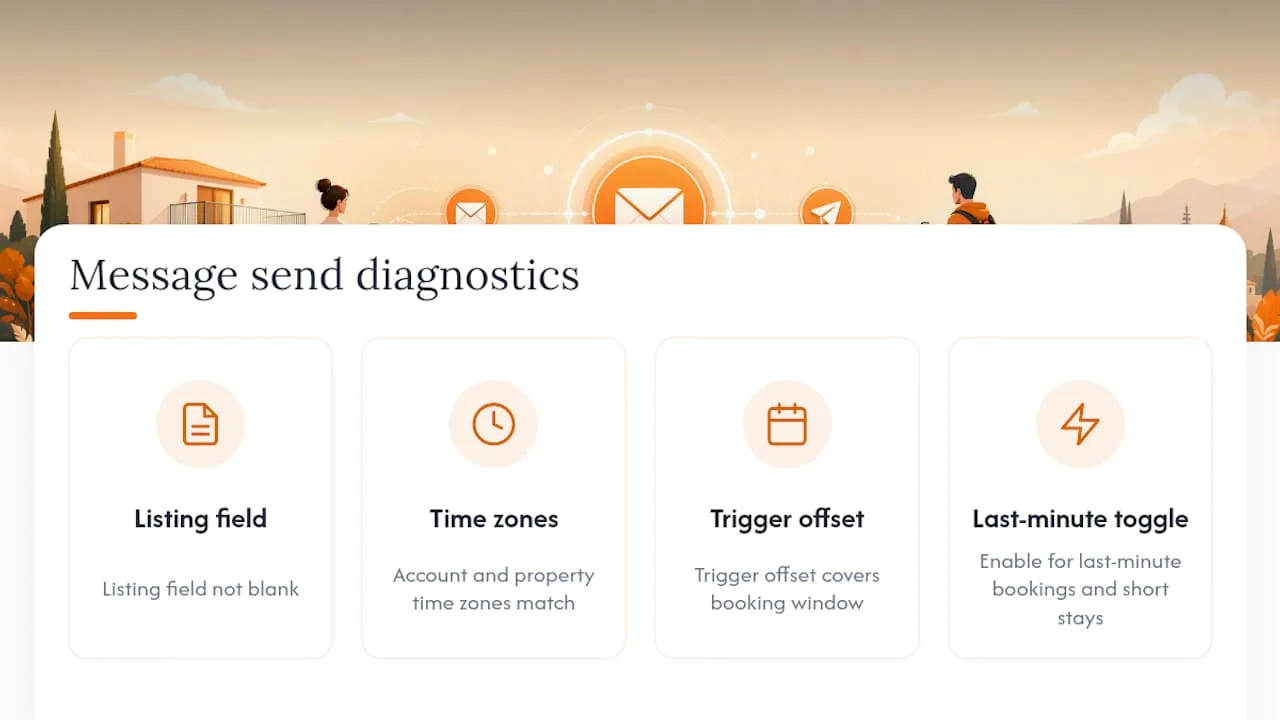
Run this checklist when a message doesn’t fire: confirm the listing field isn’t blank, check your account time zone matches your property’s time zone, verify the trigger offset actually covers the booking window, and confirm the last-minute toggle is on.
When Do You Need More Than Native Scheduling?
Native scheduled quick replies handle the basics well, and if you run a single listing, they’re genuinely enough. You get free, reliable coverage of the three core trigger events without paying for anything extra.
The gaps show up once you’re managing several properties across more than one platform.
- Keeping identical messaging consistent across Airbnb and Vrbo means duplicating every template twice, in two separate interfaces.
- Neither platform’s quick replies adapt tone or content based on a guest’s actual question, since they’re static templates.
- Cross-property consistency breaks down fast once you’re relying on memory to know which listing has which template attached.
- Attachment handling differs enough between platforms that a document strategy built for Vrbo doesn’t automatically work on Airbnb.
RealtevoOS was built for exactly this scaling point. It consolidates Airbnb and Vrbo messaging into one dashboard, layering AI-driven replies on top of your existing templates so tone and content adapt without you rebuilding anything from scratch.
Pro Tip: Before adding an automation layer, audit which templates you already have working well. A pilot on five or six units tells you more about time saved than reading another feature list.
What Actually Moves the Needle When You Automate
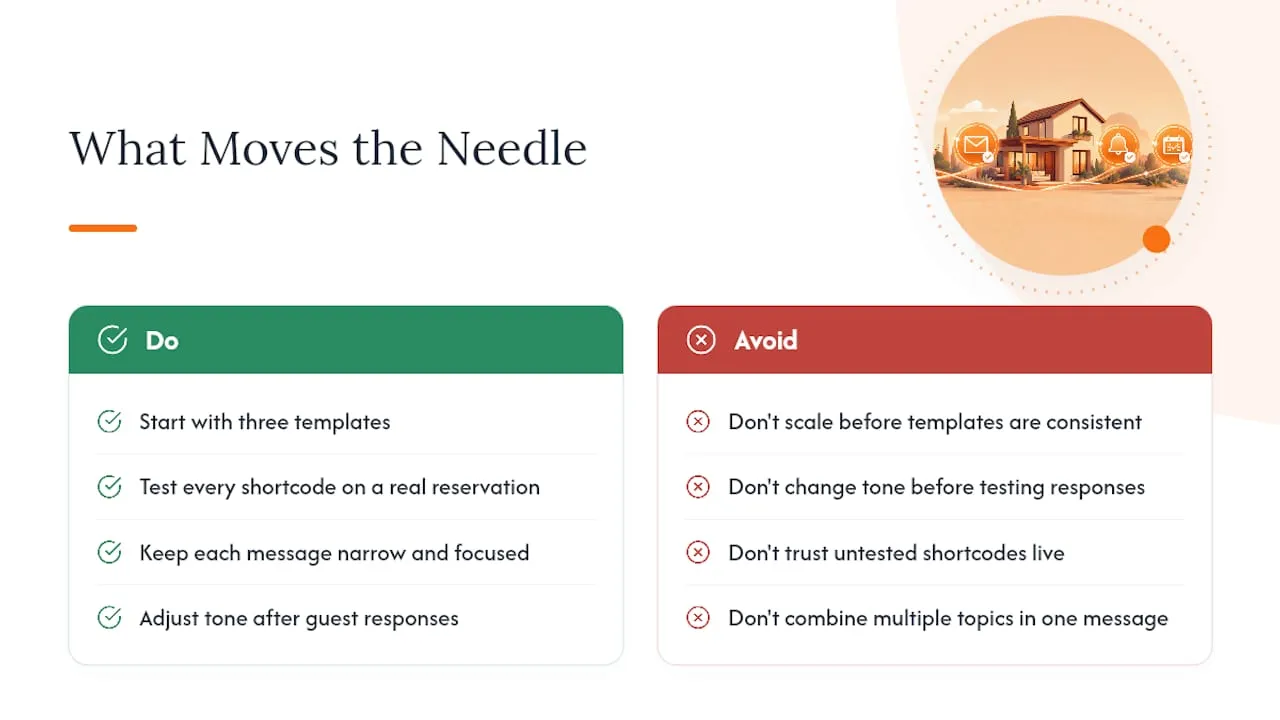
Start with three templates: booking confirmation, pre-arrival, and day-of check-in. Those three cover the highest volume of routine guest questions, and getting them right pays off faster than any other automation work you’ll do.
Test every shortcode against a real reservation before trusting it live. Keep each message narrow. One topic, one purpose. Adjust your tone only after you’ve read how actual guests respond, not before. And don’t add a scaling tool until your existing templates are consistent and your listing data is clean. Automation amplifies whatever habits you already have, good or sloppy.
— Jose Villeda
RealtevoOS: Your Command Center for Multi-Property Messaging
Running scheduled quick replies on five units is manageable by hand. Running them on fifty, across both Airbnb and Vrbo, with consistent tone and zero blank shortcodes, is a different job entirely. That’s the gap RealtevoOS closes.

RealtevoOS consolidates Airbnb and Vrbo messaging into a single dashboard, eliminating the need to rebuild the same template in separate interfaces. Its AI-driven replies adapt to guest questions, moving beyond static text blocks, and help ensure consistent messaging standards across properties without manual checks. This platform aims to reduce the time spent copying, pasting, and correcting shortcode errors across accounts.
If you’re managing more than a handful of listings and starting to feel the seams between platforms, visit the RealtevoOS Command Center to see how the messaging layer works, or request a demo to walk through your own portfolio.